
One of the unpleasant, but somewhat common, occurrences is when a customer "fires" one MSP and "hires" another MSP to handle their IT needs.
Luckily, if the customer is using AVDs with a CSP Subscription, this is a fairly painless process, even if the "fired" MSP is currently using Nerdio Manager in the customer's environment.
Similar to steps in Move the Nerdio Manager Application to a Different Subscription, this post covers the steps to transition AVD Management from one MSP's Nerdio Manager instance to another MSP's Nerdio Manager Instance.
To keep things as simple as possible, the "fired" MSP will be referred to as MSP A and the "hired" MSP will be referred to as MSP B.
NOTE: These steps assume you have at least a professional/cordial relationship between the two MSPs.
If it's a hostile change-out, you'll have to do your best to replicate the settings as much as possible.
Prep Work
After the customer has notified MSP A that they're going to be changing services to MSP B, the information gathering begins.
MSP B to MSP A
MSP B will reach out to MSP A to get the following information:
- A tentative timeline for the migration
NOTE: It's a good idea to be sure to communicate this to the customer so they're aware of the plan and know what to expect. - Global Admin Access to the customer's Azure Portal/M365 Environment
- The CSP License provider (i.e. Microsoft (direct), Pax8, Ingram Micro, Sherweb, etc.) for the current M365/O365 Licenses and Azure Subscription(s).
- Screenshots of the following settings in Nerdio Manager for the customer's account:
-
Desktop Images
- Any automations or recurring schedules (i.e. Set as Image)
-
Host Pool
- Any automations or recurring schedules (i.e. Resize/Re-image)
- Auto-Scale settings (including any Alternate Schedule)
-
Host Pool Properties (including each tab)
NOTE: For the FSLogix and RDP Properties tabs, be sure to sort by Configuration so you can see all of the settings that are configured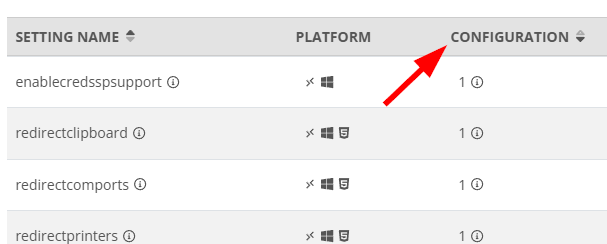
-
Servers
- All servers
- Any automations or recurring schedules (i.e. Resize/Re-image)
-
Azure Files
- All linked File Shares
- Any Auto-Scale settings
-
Applications (UAM)
- All linked File Shares
- Any Auto-Scale settings
-
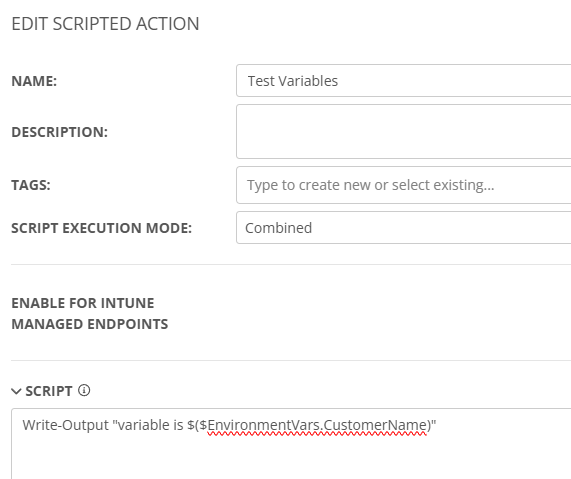
Scripted Actions
- Details for any custom scripts (i.e. non-NMM native)
- Any Auto-Scale settings
- Details for any custom scripts (i.e. non-NMM native)
-
Integrations (Settings>Integrations)
- Each pod
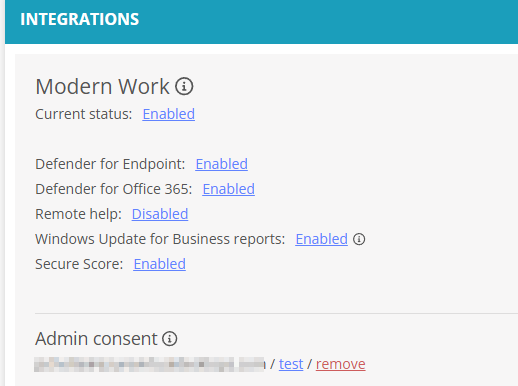
- Each hyperlinked sub-setting
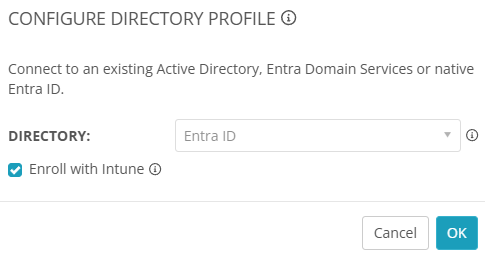
- Each pod
-
Desktop Images
MSP B
After MSP B has received the Global Admin (GA) credentials from MSP A, they will be able to get a lot of the remaining information about the customer's environment.
This is a list of things MSP B needs to do to be ready for the migration:
- Setup a CSP Partner Reseller relationship with the customer in your Microsoft Cloud Partner Portal.
see How to request a reseller relationship from a customer in Partner Center for more information. - Reach out to your Distributor (i.e. Microsoft (direct), Pax8, Ingram Micro, Sherweb, etc.) and start the license/subscription transition process (see Transfer billing ownership from one partner to another - Partner Center | Microsoft Learn for more info).
NOTE: You can still migrate a customer to your management without having this step complete, but the customer will need to continue to pay MSP A for their licenses/subscriptions until this is complete.
If you're using a non-Microsoft distributor, they may or may not support ownership transfers. - Add the customer's account to your Nerdio Manager instance (see Add an Account for details) and make the settings/configuration match what's in MSP A's screenshots, but do NOT enable any automations (i.e. Auto-Scale, schedules, etc.
- Identify MSP A's Azure App Registration (Customer's Azure Portal> App Registrations>account-web-admin-portal-(GUID)
NOTE: The app registration should match pretty closely to your Nerdio Manager ULR.
Check the GUID against your Nerdio Manager URL to know which registration belongs to MSP B vs MSP A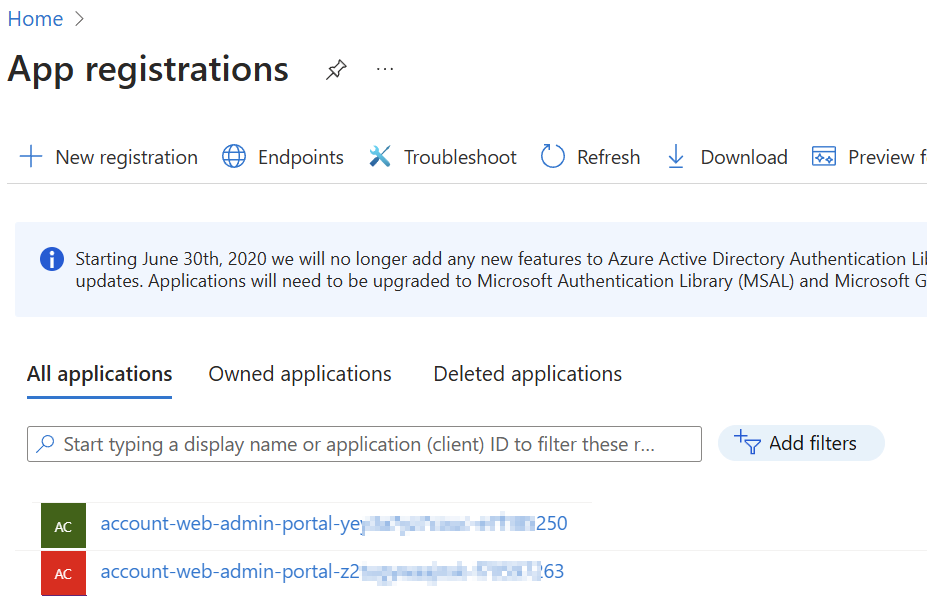
- Schedule a pre-migration call with MSP A to review their screenshots and your settings to make sure there are not going to be surprises and discuss when to do the final cut-over.
NOTE: Generally, you will want to do the cut-over during the middle of the day to minimize the impact on the customers because automations will likely not be triggered as most people are already logged-in to their AVD session.
Cutover
At the scheduled time (between MSP A, MSP B, and the Customer), the following actions will take place:
Customer
- The customer doesn't need to do anything because they will be able to connect to their AVD sessions even if Nerdio Manager is down.
MSP A
- Disable/Remove any automations for the customer's account in Nerdio Manager (i.e. Auto-Scale, Schedules, etc.)
- "Destroy" (remove) the customer's account from Nerdio Manager
MSP B
- Enable all automations for the Customer's account in Nerdio Manager (i.e. Auto-Scale, Schedules, etc.) based on the information gathered during the Prep Work steps.
- Test the automations to verify they're working as designed
- Remove MSP A's access to the customer's environment
- Remove MSP A's App Registration from the customer's Azure Tenant
- If the License/Subscription transfer hasn't finalized, work with your distributor to finalize it.
NOTE: If you are not able to transfer the ownership of the subscription, you may need to Move the AVD to another subscription. (see Move AVD to a new Azure Region (v2) – Nerdio Help Center for more info) - After the License/Subscription transfer is complete, remove MSP A's CSP Reseller relationship
Hopefully this helps our partners out and makes these kinds of transitions that much easier. 🙂
Please comment below with your experiences to help us improve this guide.
Comments (0 comments)