
We recently switched a client of ours from Amazon Workspaces to Azure Virtual Desktops. Multiple end-users have reported continual crashes/freezes from Adobe. We are wondering about Best Practices for installing and rolling out Adobe Reader/Pro to our Host Pools and how other MSPs are handling Adobe in this environment.
Adobe Acrobat Crashing/Freezing in AVD
7

Just wanted to leave a note on this because I was having the same issue particularly with CCH Engagement. If you're using Engagement, log into Engagement and go to Tools > Options > and UNCHECK ‘Open Adobe in separate instances’.
CCH support told me that box would not make a difference numerous times but after unchecking that box, the difference was genuinely night and day. Best of luck to you all!

Hi All, I have been fighting Acrobat randomly freezing up briefly and at times totally locking up and having to be force closed from task manger on a new deployment for a CPA firm who uses the Thomson Reuters suite of software that loves to not close out Acrobat properly when it uses it to display PDF's inside of the software.
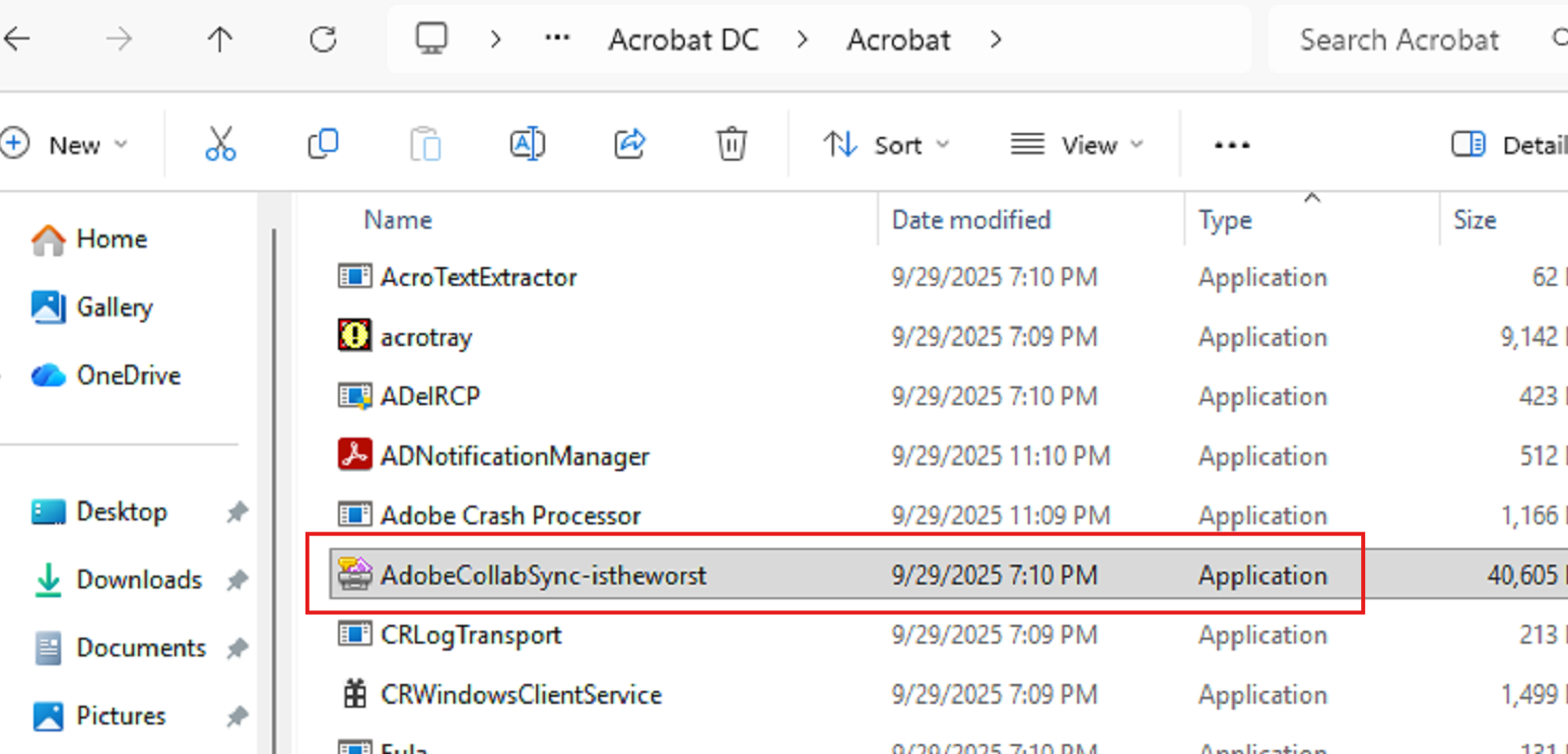
Having tried the majority of what has already been posted here and running out of options I decided to look into the adobecollabsync.exe as it was open several times per user with more CPU usage than acrobat itself even though they weren't actually using this feature to sync their documents to their account.
This can be disabled in preferences on a per user basis, but I haven't found a way to globally disable it except for renaming the exe in the adobe folder. Once I killed all of the open instances and renamed the exe, Acrobat has been running without any issues for the last 7 hours. Not calling it totally solved yet but wanted to drop it here since we haven't previously gone 30 minutes without a user having an issue.

Where is everyone getting the MSI for adobe acrobat pro? All I can find is the MSI for reader which then upgrades itself to the Pro version

Matt Thomas That has been my approach to adobecollabsync.exe issues on AVD hosts as well, rename the EXE after install and update.
Here is a guide I created for my team for installation. Collection of Jonny Moura David Lafferty and Anthony Almeida posts (Thank You!). We have been installing just Pro on hosts and using the suppress adobe sign in option so we can have users who don't have a license use it as reader, those that do, can sign in and use pro without needing to juggle multiple versions or installs.
This installs Adobe Acrobat Pro with the following options.
- Sets adobe as the default PDF app
- Deletes desktop shortcut
- Suppress signing to adobe account on open - This allows one version of Adobe to be installed and if the user doesn't have a license it will function as reader without nagging to sign in.
- Disables Automatic updates
- Disabled all of the cloud options
- Allows Pro users license to roam between session hosts with FSLogix.
Download Links
Adobe Acrobat Pro Enterprise - Install Acrobat Enterprise term or VIP license
Adobe Configuration Wizard - Welcome to the Wizard — Acrobat Customization Wizard for Windows
C++ Redistributable x86 for Adobe Configuration Wizard - https://aka.ms/vc14/vc_redist.x86.exe
Adobe Configuration Wizard Settings
- Extract the Adobe that was downloaded to Installs Folder
- Open Adobe Configuration Wizard
- Open Package - Browse to adobe installer in the installs folder
- Set the following Settings.
- Personalization Options
- EULA Option - Check Suppressed Display EULA
- Installation Options
- Make Acrobat the default PDF Viewer
- Remove Previous Version of Acrobat
- Remove all versions of Reader(if applicable)
- Enable Optimization
- Run Installation - Unattended
- Suppress Reboot
- Check Suppress sign-in in Acrobat
- Check Add virtual environment support
- Shortcuts
- Remove Desktop Shortcut
- Online Services and Features
- Check the following
- Disable Product Updates
- Disable Upsell
- Disable all Adobe Services
- Disable third party connectors
- disable SharePoint connector
- Check the following
- Personalization Options
Transform > Generate Transform - save in default path and overwrite existing
File Save Package
- This creates a Transforms folder that houses all customizations created. and also creates an AcroPro.mst file which you call during install to reference the customizations.
Installation
Run this in admin CMD prompt
"\\PathToSetup.Exe" /sPB /msi TRANSFORM="\\PathtoTransformFile\acropro.mst" ROAMIDENTITY=1 ROAMLICENSING=1
Roamidentity and roamlicensing are the flags to add the registry entries for roaming licenses with FSLogix
Example of working command from G&C
- "\\GC-SRV01\Software Installs\Adobe Acrobat\Setup.exe" /sPB /msi TRANSFORM="\\GC-SRV01\Software Installs\Adobe Acrobat\acropro.mst" ROAMIDENTITY=1 ROAMLICENSING=1
Please sign in to leave a comment.
Comments (37 comments)