
Summary
Now that Microsoft has an official solution for FSLogix Entra ID Profiles with Azure Files, the question of “How do I migrate a user's profile from Blob Storage to Azure Files?” often comes-up.
While the process is similar to the other Moving Profiles to a new Storage Account – Nerdio Help Center guide, there are some slight differences.
The biggest issue in migrating is Blob Storage uses Containers and Azure Files Storage uses Folders.
The steps below take all of this into account and handles the majority of the heavy lifting for you.
***WARNING***
It is STRONGLY recommended that you test this in a non-production environment BEFORE you do this in production.
***WARNING***
Prerequisites
- A maintenance window to copy the profiles
NOTE: If someone is actively logged in to their profile, it will not copy correctly. - Create a new Entra ID-joined Azure Files Share in NMM with Premium Storage
see Create a new Azure Files Share in NMM -
Migrate-Blob2AzureFilesWithContent.ps1 script
-
NOTE: You will be prompted for the following variables and should have them ready prior to running the script:
- Resource Group Name for the Blob Storage Account
- Storage Account Name for the Blob Storage Account
- Resource Group Name for the Azure Files Storage Account
- Storage Account Name for the Azure Files Storage Account
- File Share Name for the Azure Files Storage Account
-
NOTE: You will be prompted for the following variables and should have them ready prior to running the script:
-
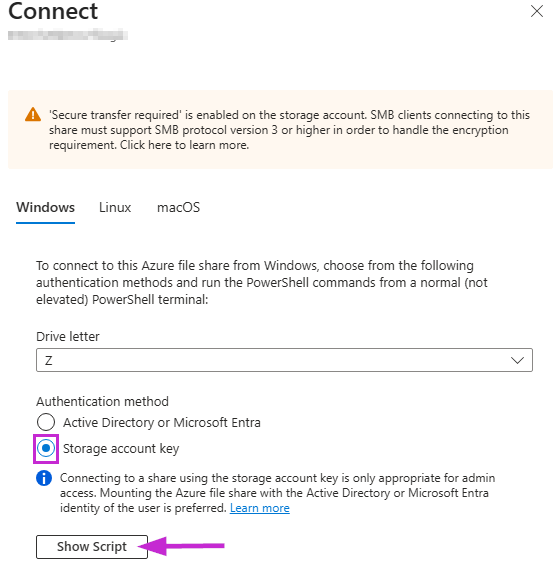
Windows Machine with the Azure Files Storage Account File Share mounted as a Network Drive using the storage account key
See Mount SMB Azure File Share on Windows | Microsoft Learn for more info
-
Set-AzFilesFolderOwner.ps1 script
- NOTE: You will be prompted for the Drive Letter of the storage account when you run the script
- Ideally, a test host pool to try this out BEFORE you do it in production.
Instructions
- Connect to CloudShell in the customer's Azure Environment (https://portal.azure.com/#cloudshell)
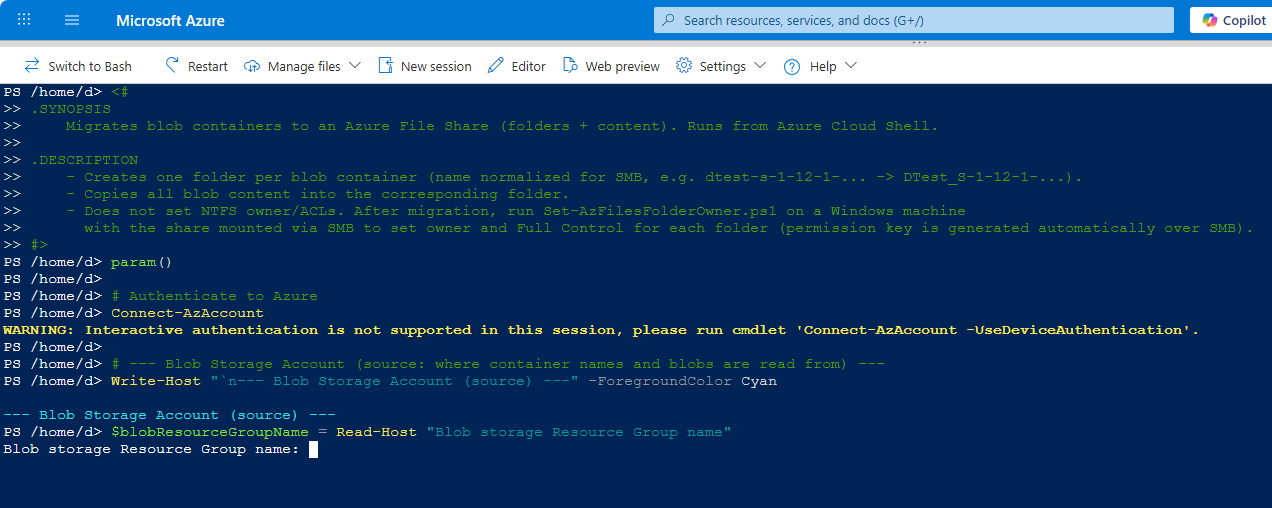
- Run the Migrate-Blob2AzureFilesWithContent script in Azure CloudShell
NOTE: You will be prompted for the following variables and should have them ready prior to running the script:- Resource Group Name for the Blob Storage Account
- Storage Account Name for the Blob Storage Account
- Resource Group Name for the Azure Files Storage Account
- Storage Account Name for the Azure Files Storage Account
-
File Share Name for the Azure Files Storage Account
-
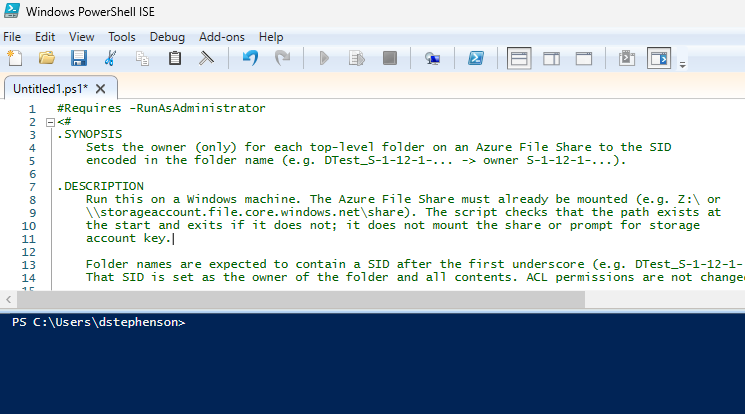
After that script completes, run the Set-AzFilesFolderOwner script on your Windows VM and enter the Network Drive (i.e. Z:\ ) when prompted
-
Once the script is finished, you are able to Edit or Create an Existing FSLogix Profile, with it pointing to the new AzureFiles FSLogix path and test it out.
NOTE: If you are editing an existing FSLogix Profile configuration (not recommended), be sure you change the Cloud Cache/Blob Storage Settings, Configure session hosts registry for Microsoft Entra joined storage, and replace the FSLogix Profile Path.
Example is shown below: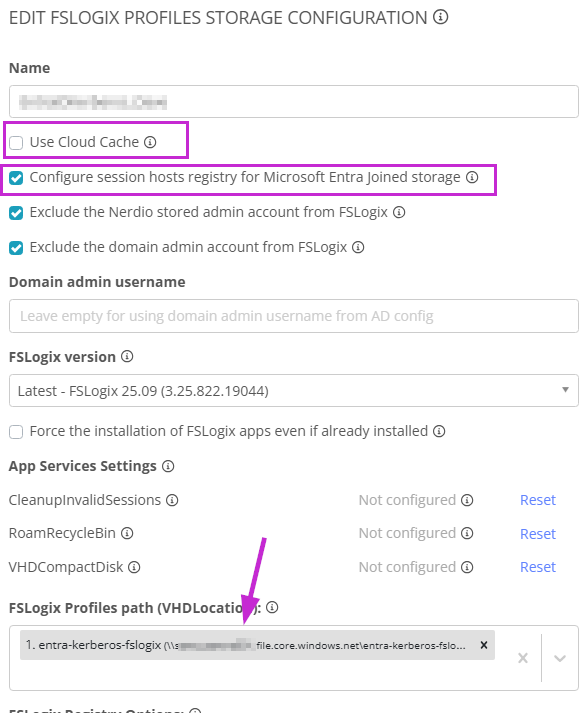
For more information about the two scripts, please read the ReadMe on the NMM Sales Engineering GitHub Repo
Comments (0 comments)