
Formally, My request is two-fold related to a scenario I will try to briefly describe below. Coming out of this issue, as always, we learn about our misconfigurations and their impact, and how we might be able to avoid or mitigate the impact in the future. So here are my two requests.
Item 1 - In the Azure Files Auto-Scale configuration blade, the first input box after selecting Relative or Absolute, we are prompted for a minimum size, which is calculated to be the current in use value + the value we input. I can make a strong case that 0 shouldn't be allowed, though I can imagine a few scenarios where that might make sense. So my request is that the value DEFAULT to something other than 0, either 1 or 10 would be my personal recommendation. It can always be changed, but this helps avoid the mistake we made. Seems like a simple thing, but when set to 0, auto-scale is never triggered (Based on storage), and when the storage is consumed, all the bad things that come with profile storage being full, happen. If not changing the default value, at least more bold screen notification that if set to 0, auto-scale will never trigger on minimum size, to scale up - “are you sure about this?”.
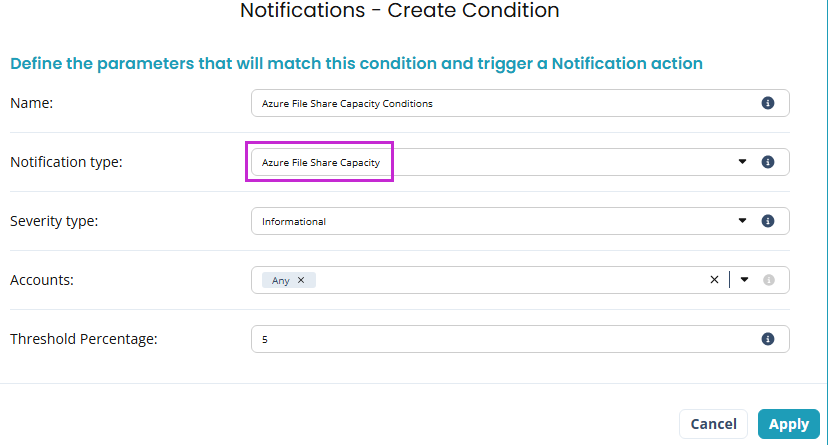
Item 2 - Add an alert condition for the Azure Files consumed storage quota, or some variation thereof. I -thought- I had an alert condition to tell me when storage was near full but having looked at it again after a year or two since I configured it, I realized the best alert condition I could find was for a failure of auto-scale to expand. In the above condition, with the buffer space set to 0, auto-scale wasn't trying (and failing) to scale up, therefore, no alert condition was met. This seems like a logical condition to have available, even if auto-scale isn't used - a method to notify engineers that you are running out of space. Variations on how to implement and constrain could vary, but I hope this gets the idea out there. Maybe it is already covered with a condition I didn't notice, but if not, lets consider that!
Now, the context for why: Without going into detail here (but happy to, should anyone want to discuss) - It took a client go-live to expose the misconfiguration we made (leaving the minimum buffer value at 0, it should have been 20 by the design) - and it was not as obvious as we expected it to be, to find it. So these two items would help avoid it in the future, and passing it being avoided or mitigated, expose a little improvement to the alert conditions in general.


Comments (3 comments)