
I recently worked with a partner to test accessing resources in Azure from workstations (namely a file server on an Azure VM). I thought it may be useful to do a quick breakdown of the process since setting up remote access using the Azure VPN Client was much easier and less time consuming than one would think.
Prerequisites:
- Azure subscription and existing Vnet with your resources, such as a file server, that you'd like users to access remotely.
- VPN Gateway (the basic SKU will not work for the Azure VPN Client, so you'll need at least VPNGW1 SKU. This can be created through NMM)
If you don't already have an existing VPN Gateway, you can create one in NMM at the customer level by going to Network > VPN and then clicking the button 'Add VPN Gateway".


Once you have the VPN Gateway created, navigate to the customer Azure portal and search your resource group for the VPN Gateway.
Within the VPN Gateway, click on Settings > Point-to-site Configuration:

Click “Configure now”:

Fill out an address pool (ensure there is no overlap with your Azure resources' adress pool(s)).
Set Tunnel Type to OpenVPN (SSL), Authentication type to Azure Active Directory.
Tenant: https://login.microsoftonline.com/{YourTenantID}
Audience: This will be the app ID for the Azure VPN Client app: c632b3df-fb67-4d84-bdcf-b95ad541b5c8
Issuer: https://sts.windows.net/{YourTenantID}/

Once finished, click on “Download VPN Client”, and extract the file (downloads folder will suffice). You can distribute this to your users to use to configure the VPN client on their workstation.

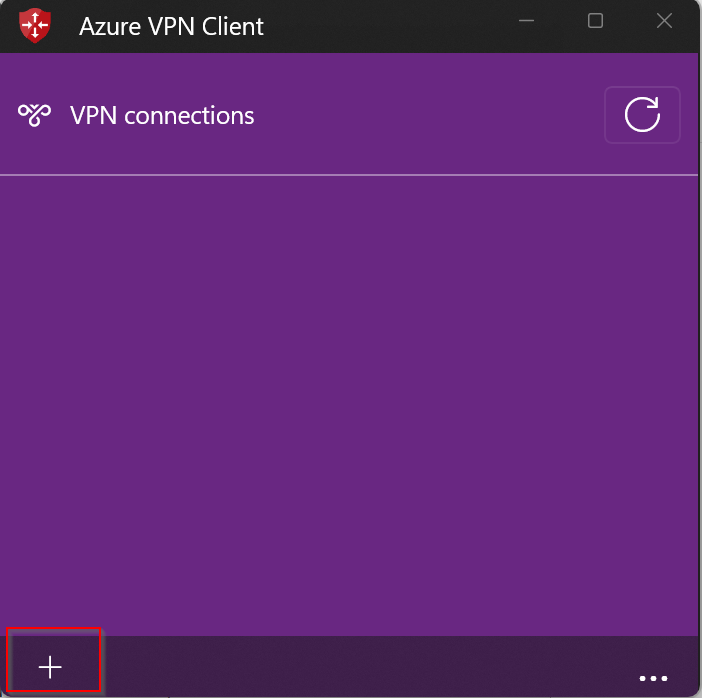
On the client workstation, open the Azure VPN Client and click the + > Import, then select the downloaded configuration file. Click save.

Click connect:

Comments (0 comments)