
TL;DR
You can make an Azure VM show-up in Desktop Images (instead of Servers) with one simple Tag/Value
I don't know if this is helpful to everyone, but I was recently working with a partner where they were taking over an existing environment and wanted to have a VM they were already working for a golden image show-up under Desktop Images (instead of Servers) without needing to use the Add from Azure VM option. 
It turns out, this is really easy to do by adding 1 simple Azure Tag to the VM.
- Verify the Resource Group for the VM is associated with NMM
- Logon to the customer's Azure Portal
-
Search for the VM and Select the VM

- Select the Tags blade
- Enter WAP_OBJECT_TYPE for the Name
- Enter DESKTOP_IMAGE_VM for the Value
- Click Apply
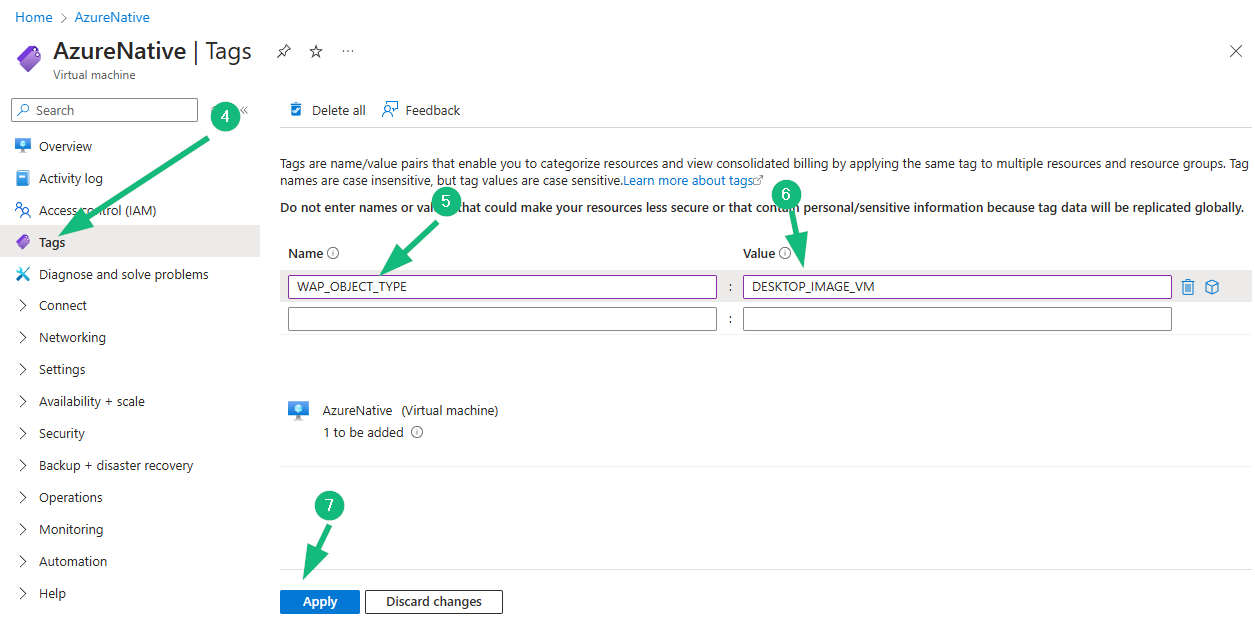
- That's it!
When you refresh your Desktop Images page, the VM will be there.
Obviously, if you want more information displayed, you will want to add additional tags (compare an NMM created image to see the optional tags you might want), but as a quick option, it gets the VM to be listed.
Comments (0 comments)